Showing posts with label Vista. Show all posts

Tuesday, April 14, 2009

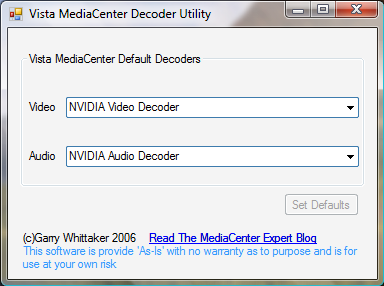
Announcing MCDU – The Media Center Decoder Utility (replaces VMCD)

For Vista, TV Pack and Windows 7

Download  at http://www.whittakermoore.com/mcdu.exe

image 

A couple of big new features.

  1. Take Ownership: To work round the issues with codecs being secure in Windows 7 and in some versions of Vista with TV Pack installed this option will take ownership of the default codec files and rename them to a .mcdu.bak file if you choose a non-standard codec If you then choose to go back to the standard decoders the utility will rename them back..

WARNING CHANGING THE DEFAULT MICROSOFT CODEC FOR LIVE TV CAN BREAK OTHER APPLICATIONS. RECOMMENDED ONLY FOR A PURELYMEDIA CENTER SETUP

  1. Show decoders not named video or audio. By default MCDU will show all codecs that have Video Decoder or Audio Decoder in the title – even if they are not marked as Media Center decoders. By checking this option al other decoders will be included. Use at your own risk.

image

If you are running Windows 7 Take Ownership will be checked at start up.

image image

IMPORTANT IF YOU HAVE ALREADY RENAMED THE DEFAULT MICROSOF CODEC FILES THEN THE AUTO RENAMING WILL NOT WORK. RENAME THEM BACK BEFORE USING THE UTILITY.

And finally the holy grail…. FFDSHOW being used for live tv in 7 Media Center. To get FFDShow to recognise Live TV you will need to enable the MPEG in AVI option.


Download  at http://www.whittakermoore.com/mcdu.exe

32 bit decoders have been tested. Its been coded to work with 64 bit but I’ve not been able to test it and I am not aware of any working 64 it decoders for TV other than the MS ones

Use at your own risk but I hope you find this useful

Garry.

p.s. almost forgot for TV Pack users you will now see tow decoders listed for both Video and Audio. This is because the TV Pack allows for a fallback decoder for formats the main decoder cannot work with.

Thursday, April 02, 2009

Arcsoft Total Media Theatre 3 Platinum First Impressions

tmt3

Up until recently I have used Cyberlink Power DVD  Ultra as my primary playback software for Blu-Ray/HDDVD. Whilst I have not been impressed with it’s integration into Media Centre it was on my setup way ahead of the competition in terms of stutter free playback.

I have often cast envious eyes at the integration of Arcsoft Total media Theatre (TMT) into Media Center but for a long while I could not get it even to start up in Vista. To be fair this was mainly due to being on the beta programme for Vista SP2 and was resolved in the final release of SP2. What was not resolved was a general level of flakiness in playback on my setup. It used to exhibit very jerky movement and struggled to keep up with playback. Now I have a very good setup, with a Phenom x4 processor and a very reasonable ATI graphic chip set, so it really had no excuse.  Much trawling of websites didn’t offer any solutions with many people pointing to the fact I use an external Blu-Ray drive as a likely cause.

Anyway all that has changed with the release of TMT3. Rock solid playback. No jerkiness at all., excellent sound(with one gotcha of which more later) and a fantastic image. On top of which the integration into Media centre is just excellent. I know it is actually shelling out to an external application but it just doesn’t feel like it is.

My only gripe is that I use an sp-dif output to my speaker system and whilst the volume control in Media Center happily controls this, the one in TMT3 doesn’t. Funnily enough mute does still work.

Ignoring that one gripe though it is a very solid contender for the Cyberlink crown especially as it still supports HDDVD which Cyberlink doesn’t in its recent incarnations.

I would go as far as saying it is now my player of choice.

Note: only the platinum edition supports Blu-Ray/HDDVD and as ever with the costs of licensing the included technologies the price is a little steep but google for discount codes.

Publisher's Site

Saturday, December 13, 2008

Maplin have RF MCE Keyboard with Built-in touchpad for 30 quid (£29.99) - UPDATE BACK IN STOCK as of 2nd April 2009 but now £49.99

Recently when asked what wireless keyboard I would recommend for Media Center use I have been mentioning the RK-278 MCE Keyboard from Maplin here in the UK. I really like these keyboards they have a good full size keyboard which balances nicely on your lap; a good selection of media center specific keys and most significantly a built-in touchpad. For those of us using Laptops day in day out this is just so much easier to get on with than the joysticks or trackballs that usually inhabit these al in one input devices. So even though they retailed at around 60 quid I thought the extra functionality worthwhile over other cheaper competitors. Now, in time for the holidays, Maplin have dropped the price to just under 30 quid - which is a bargain.

I think this offer is in store only as i can't find the keyboard listed on the website and my local store did not have many left.

They also currently have a rather neat RF based Media Center remote for sub 20 pound as well. CORRECTION: this is actually an infraed remote not RF (I'm sure it said RF on the shelf)

Friday, May 23, 2008

Reminder: How to use decoders that do not show up in the VMCD utility


One of the comments that commonly appears in posts about my VMCD utility is "How do i get X decoder to show up in your utility"

For decoders that are XP Media Center compatible this has been explained in this post:

http://thedigitallifestyle.com/cs/blogs/garry/archive/2007/03/21/tip-using-non-mce-compatible-decoders-with-my-vista-media-center-decoder-utility.aspx

I am also working on adding some of the more common but non MCE Compatible codecs such as FFDShow - more later on that

Thursday, January 31, 2008

Stiil here

Although you may doubt it even further I am still about.

Hopefully sometime soon I will be back posting and am hoing to start with how to get ffdshow working with VMCD.

Before I vanish again a quick tip on tracking down Extender configuration errors. If you get a configuration error when adding a new Extender then take a look in the Media Center section of the event viewer (System Tools) you will probably see an error with an error code a a link for web-help on this error. Rather remarkably this web help can be very helpful at diagnosing the problem.

Thursday, July 19, 2007

Sorry no 64bit Vista decoder utility

I've tried valiantly. I've scoured registry dumps that readers have kindly sent in. I've analysed all the relative entries - I've even worked out where a 64 bit version of my decoder utility should post the entries. The only problem is that my current 32 bit app is posting in the right place. Unfortunatley the issue is not in this case getting the entry in the right place its the fact that the decoders themselves are not installing properly for 64 bit operation. This is not easilly worked round if possible at all.

So I'm very sorry to disappoint you 64 bit users - I did try...

Monday, July 09, 2007

Neat Vista Trick: Listening to Radio 5 commentary whilst watching TV (BBC2 Tennis)

One thing that happens quite often in the UK is that sporting events and some concerts are covered simultaneously by TV and Radio.

This has led to quit a common scenario where people will mute their tv and watch the pictures whilst listening to the radio commentary however there is an issue with this since digital tv came in.

Basically DVB-T TV signals require a finite amount of time to process so the image is delayed slightly in appearing. Of course this means that Radio and TV are out of sync which is very annoying at sporting events where you can see what has happened before the commentary catches up.

With media center the obvious thing would be to listen to the freeview DVB-T radio 5 source whilst watching the images from another tuner but unfortunately Media Center doesn't let you do that.

This all came to light for me when the friend I recently built the Media Center for,asked me if she could watch the Wimbledon Tennis coverage whilst listening to the BBC Radio 5 commentary.

At first I couldn't see a solution but then it struck me that Radio 5 has an internet stream on the BBC website and I wondered if she could make use of that.

Well she tried that and yes she could play the internet stream at the same time as watching tv but the stream was now slighly delayed over the tv image. She came up with a brilliant work round for this - Pause the tv until the sound was in sync.

Having got that worked out we still had the issue that she was getting both the radio audio from the web stream and the tv audio from media center.

Now Vista's new sound architecture came to the rescue. Opening the sound mixer in Vista shows independant volume controls for each program playing sound. In this case it was simply a matter of muting the Media Center sound source and hey presto Radio Five commentary on the BBC TV Tennis coverage.

Thursday, May 17, 2007

Tip of the day - Quieten your Hard Disk with Vista ReadyBoost

A lot has been written about the performance advantage of adding a memory card or usb stick to your Vista machine to make use of the ReadyBoost feature but one interesting side effect is that it can also reduce the amount of access needed to your hard disk and appear to make it quieter.

To quote the official Microsoft blurb:


The flash memory device serves as an additional memory cache—that is, memory that the computer can access much more quickly than it can access data on the hard drive. Windows ReadyBoost relies on the intelligent memory management of Windows SuperFetch and can significantly improve system responsiveness.


Now a lot of this data would normally be held on the hard disk and will need reading regularly, this can be the cause of the chuntering you can hear from lots of hard drives. Putting in a high-speed flash device can significantly reduce this. Obviously its not going to make the drive any quieter when it actually has to access data but it certainly has had avery beneficial effect where I have tried it.

Performance and a quieter life - two for the price of one :-)

Edit: I should point out that the cache is still written to disk so if you swap programs a lot it will still need to write out the changes and you will see less benefit in terms of noise. Q: Why does it still write to disk? A: Have you never pulled out a USB key by accident? The system need something to fall back on.

Tuesday, February 20, 2007

Almost OffTopic: TheNeverEndingStory.co.uk

Hi all

Apologies that I haven't posted for a while. The primary reason being that I've been busy working on the new version of TheNeverEndingStory site for which I'm the CTO and technology evangelist (love that title)

In case you don't know TheNeverEndingStory is a place where people can collaborate on writing stories and poems. Based on the DocRoc platform it means they can start their own stories, read other people's stories, add pages to stories written by other members and even write the next page of a story written by a famous face - including some best selling authors. Most of all its just plain fun.

Its only been up a few days but it has already attracted some great contributions by members - really compelling content.

So why is this Almost Off-Topic. Well the really exciting news is that I can announce that we will be launching a Vista Media Center version of the site using the Media Center Presentation Layer. Yes I'm getting my hands dirty and ploughing into Media Center Markup Language.

Hopefully a few screen shots will be forthcoming over the next few days. So keep watching.

Tuesday, January 09, 2007

New Terratec Cinergy XS drivers on Vista Update

Almost missed these as they only show up as an optional update, but there is a new updated driver for the Cinergy XS USB DVB Tuner on Windows Vista Update (note the original not the Hybrid or the Diversity version).

This seems to have fixed all the issues I was having with multiple of these tuners in vista such as not tuning immediately to a channel and coming up with No signal messages on recordings.

No mention on the Terratec site yet but I'm sure it will be there shortly.

On a side note if any manufacturer wants to send me any USB TV tuners for review I will be doing a review shortly.

Thursday, January 04, 2007

Windows Live for TV Beta


I don't usually post news but for Vista Media Center owners this is too good to missed. The Microsoft Windows Live Team recently announced Windows Live for TV. For some reason the beta is currently only open to US residents which seems a shame.

Basically this beta is the project, formerly known as Nemo and now know as Orbit, which brings the functions of Windows Live to Vista Media Center. The really exciting thing is it brings the full messenger experience including Video Calling.

Now we know why they dropped messenger from the Vista Media Center build.

More info from our friends at
Liveside

Friday, October 27, 2006

Tip: A great source for dvdid.xml files

If you use the MyDVD's feature in Media Center (and if that doesn't mean anything to you then take a look at http://thegreenbutton.com/forums/thread/77389.aspx) then you will know how difficult it can be to find the right dvdid.xml files for your dvds. Help is at hand - DVDxml.com currently catalogs over 15,000 DVD Titles (currently Region 1 only) and their dvdid information.

Thursday, September 21, 2006

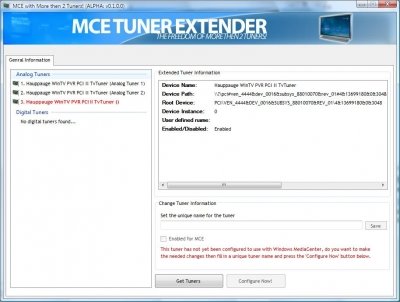
Tip: More than two tuners - Ramon Van Bruggen is a star

As you may know Media Center Edition natively supports a maximum of two tuners (well 3 if you also have an over the air HDTV card in the US)


For quite a while there have been a number of forum posts around the web (particularly on the Green Button) with walk throughs of a complex procedure to add more tuners, these have been beyond the average mortal though.

Thankfully Ramon Van Bruggen is about to change that with what like it may become the ultimate utility for adding more than one tuner. Its in early beta but is progressing very nicely.


Head on over to http://mce.ramonvanbruggen.nl for more information and to join the beta programme.

Thursday, August 03, 2006

My Vista Decoder utility and UAP/UAC

Vista has this great feature formerly known as User Account Protection (UAP) and now known as User Account Control (UAC) which is designed to protect you from malicious code. Because of my issues with Activation (see post below) I have this turned off so I had forgotten when I wrote my decoder app about a little thing called virtualization.


Now UAC doesn't think its a good idea to let nasty apps write into the Local machine area of the registry (very wisely) and therefore has a clever trick that when they do it redirects that write to another virtual area of the registry. Basically this means that legacy applications do not fail when they write and read the Local machine area of the registry but they don't actually update the local machine setting.

The decoder settings are in the Local machine area of the registry so, suprise suprise, if UAC is turned on you will find my decoder utility doesn't actually do much.

So the bottom line is, for now, you will have to temporarily turn off UAP/UAC using msconfig (details in an earlier post) prior to using the decoder utility to get it to work.

Wednesday, August 02, 2006

Vista Media Center - Great mini guide tip from Aaron Stebner

Over on his blog Aaron, who is part of Microsoft's Media Center team has a great tip on how to change the direction the arrow keys move through the new mini-guide on Vista.

Friday, July 28, 2006

Vista Media Center Decoder utility


In my post below Vista Media Center changing default decoder I mentioned I was working on something to make the process of changing the default MPEG-2 Video and Audio decoders in Vista a little easier.

Well here it is the Vista Media Center Decoder utility. This utility will show you the current default decoders, let you select an alternative from a list of installed decoders and by pressing Set Default change the defaults. Although I wouldn't necessarily recommend it, you can even select a Video Decoder from one provider and an Audio Decoder from another.

Use at your own risk but it worked for me.

Download Utility - note you must save this program locally.

Update - This application requires .net Framework v2

Vista Media Center - Changing the Default MPEG-2 Decoder

I've been playing quite a bit with and like the new beta of Media Center on Vista.

One of the nice things Microsoft have done which will make life a lot easier is to include an Mpeg-2 Decoder with every copy of Vista. This is the bit of software that makes it possible to watch DVD's and view Live and Recorded TV. Those of you who have built your own Media Center Edition PC's using 2005 will know this is a big deal as previously you would have had to buy a decoder from a third-party like Nvidia or Cyberlink.

So all in all a good thing. Wait though, what if you like something the third party decoder does for you? Perhaps it has more settings than the default decoder. Maybe it handles sound better. You would probably guess you could just install your old decoder and Media Center would use that.

Hmmm not exactly!

I've been having performance issues with the default decoder so I thought I would try the Nvidia one instead (I have an Nvidia graphics card and prevously the nvidia PureVideo encoder has worked better with it than the Cyberlink one)

So I installed the Nvidia Encoder opened Media Center, played recorded TV and... no difference. Fair enough I thought maybe my hardware is just not up to Vista but then I realised that the Nvidia icon wasn't showing in the system tray which it usually would when playing video.

After doing some digging I discovered that Vista was still using the Microsoft decoder. Ok I thought, in XP you could use the Microsoft XP Decoder Checkup utility to change the default codec. So, wondering if it would work in Vista, I downloaded ran that utility and... the Nvidia was set as the default decoder - duh!

To cut a long story short Vista media Center stores its default decoder settings in a different place in the registry to XP.


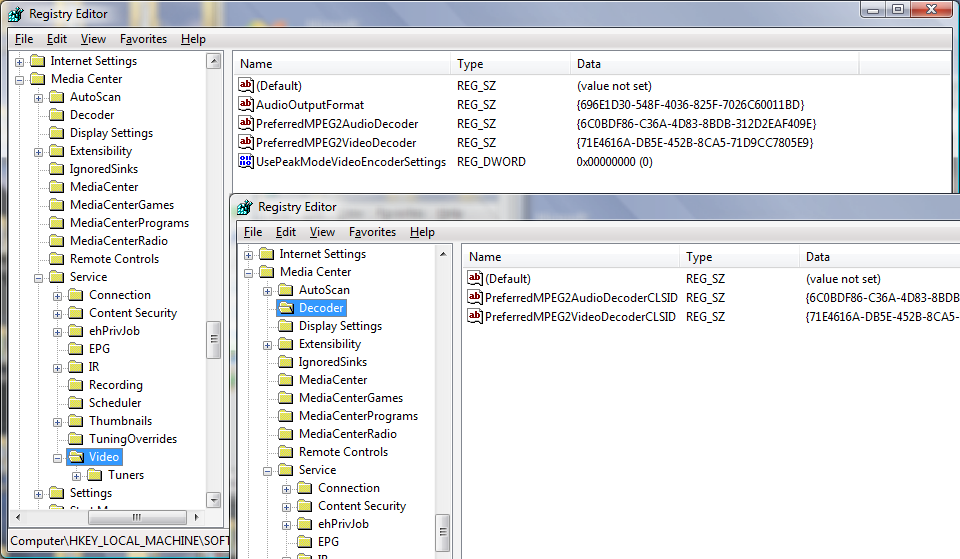
In vista they are in HKEY_LOCAL_MACHINE\SOFTWARE\Microsoft\Windows\CurrentVersion\Media Center\Decoder whereas in XP they were in
HKEY_LOCAL_MACHINE\SOFTWARE\Microsoft\Windows\CurrentVersion\Media Center\Service\Video

The actual key names are the same
PreferredMPEG2AudioDecoder and PreferredMPEG2VideoDecoder

The Nvidia install had populated the old XP values, so it was a 'simple' matter of copying the values from Service\Video to \Decoder using the registry editor and away I went. The Nvidia icon popped up when I played Recorded TV and there was an improvement in playback.

Now I am not going to suggest that anyone modifies their registry. Modifying the registry is a risky business and you could prevent your PC from working.

But I am working on something which will make this process a whole lot easier...

Wednesday, July 26, 2006

Vista Media Center - Problems with Activation on Upgrade

If you are part of the Vista Beta program then you might run into an issue of being prompted to activate after an upgrade. That in itself would not be a problem but there is a glitch with the new UAP (User Access Protection - I think) feature that causes activation to fail with an error 0x8007000D.

Fortunately you can work round this by disabling UAP.

I've seen write ups for this solution in several places but one of the clearest is how Richard Wu described the solution in a recent Technet Forum post:


1) Make sure the internet connection is active

2) Restart the PC. After the BIOS screen hit F8 a couple of times untill you see the Advanced Boot Options menu. Select Safe Mode and hit Enter.

3) Click on the Windows Key + R on the keyboard. This will open a RUN box. Type MSCONFIG and press Enter.

4) On MSCONFIG, select the TOOLS tab, scroll down and go to "Disable UAP". Hit the Launch button, close the command windows afterwards and click OK.

5) Restart the PC.

6) Logon to the PC with a user that has the Administrative permissions (If you have more than one account take the first account you created). Just like before when logging in as a user the "Activate Windows now" dialog appears. If not appear, use my above method to call the activation process out.

Note that the little shields are now gone from the options. Make sure you have internet connection and hit Activate now. Assuming your product key is correct you'll soon be smiling at the "Activation was successful" message.